Building a Survey
A Feedbacked survey is how developers get the specific feedback they need while ensuring that each response is genuine and tailored to their application. This guide outlines how to use the form creator effectively to build a survey.
Start in the builder
Go to build.staging-feedbacked.org to create the survey. The builder saves your draft locally while you work.
Use the desktop builder when you can. The mobile builder has the same core fields, but it splits editing and previewing into tabs, so the desktop layout is the clearer way to check flow, audits, and publish readiness. The desktop builder also includes a wider range of features for cleaner form component organization and a more polished editing workflow.
Build form formats
The same survey data is edited through two responsive layouts.
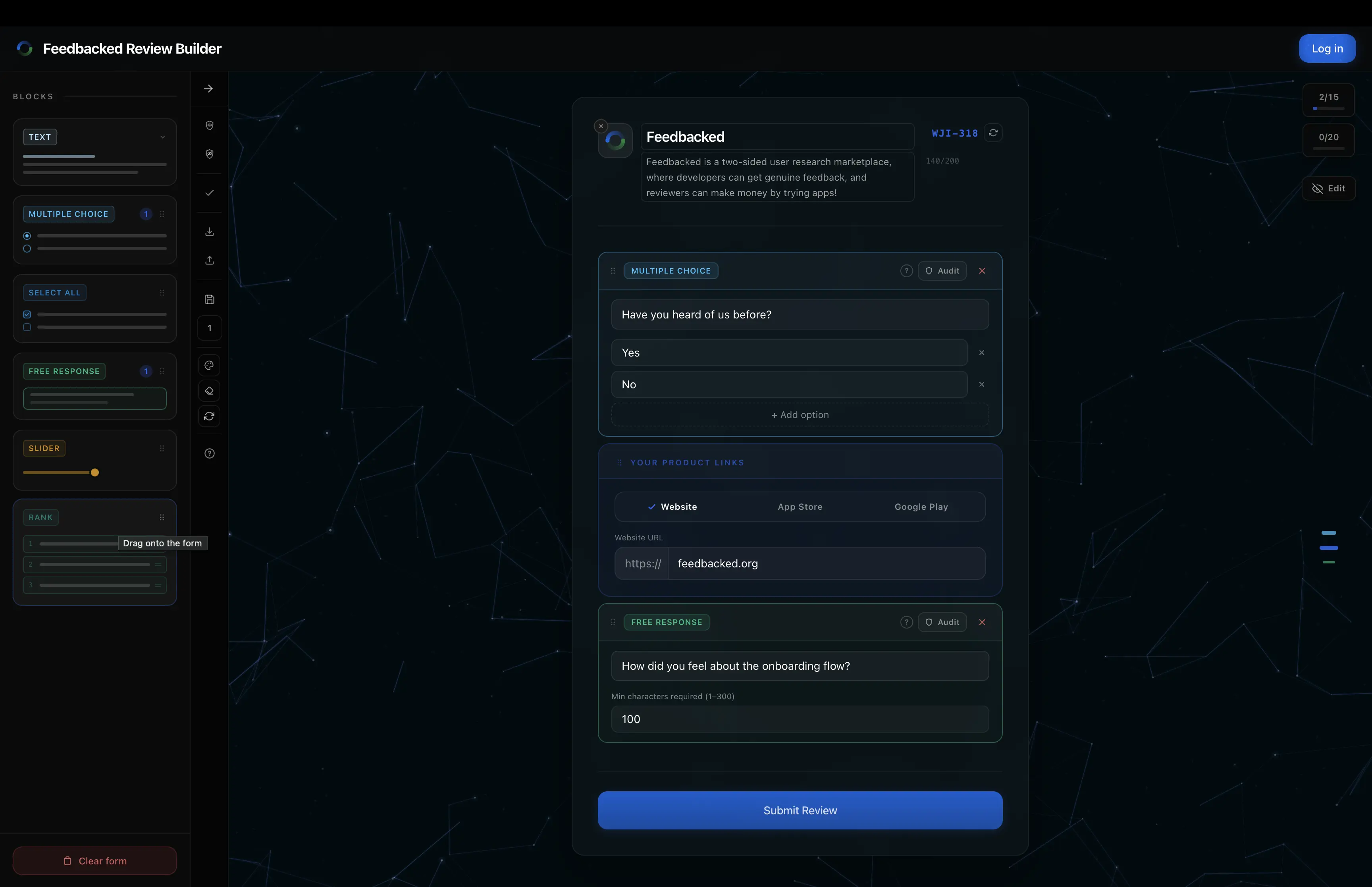
Desktop view
Mobile view
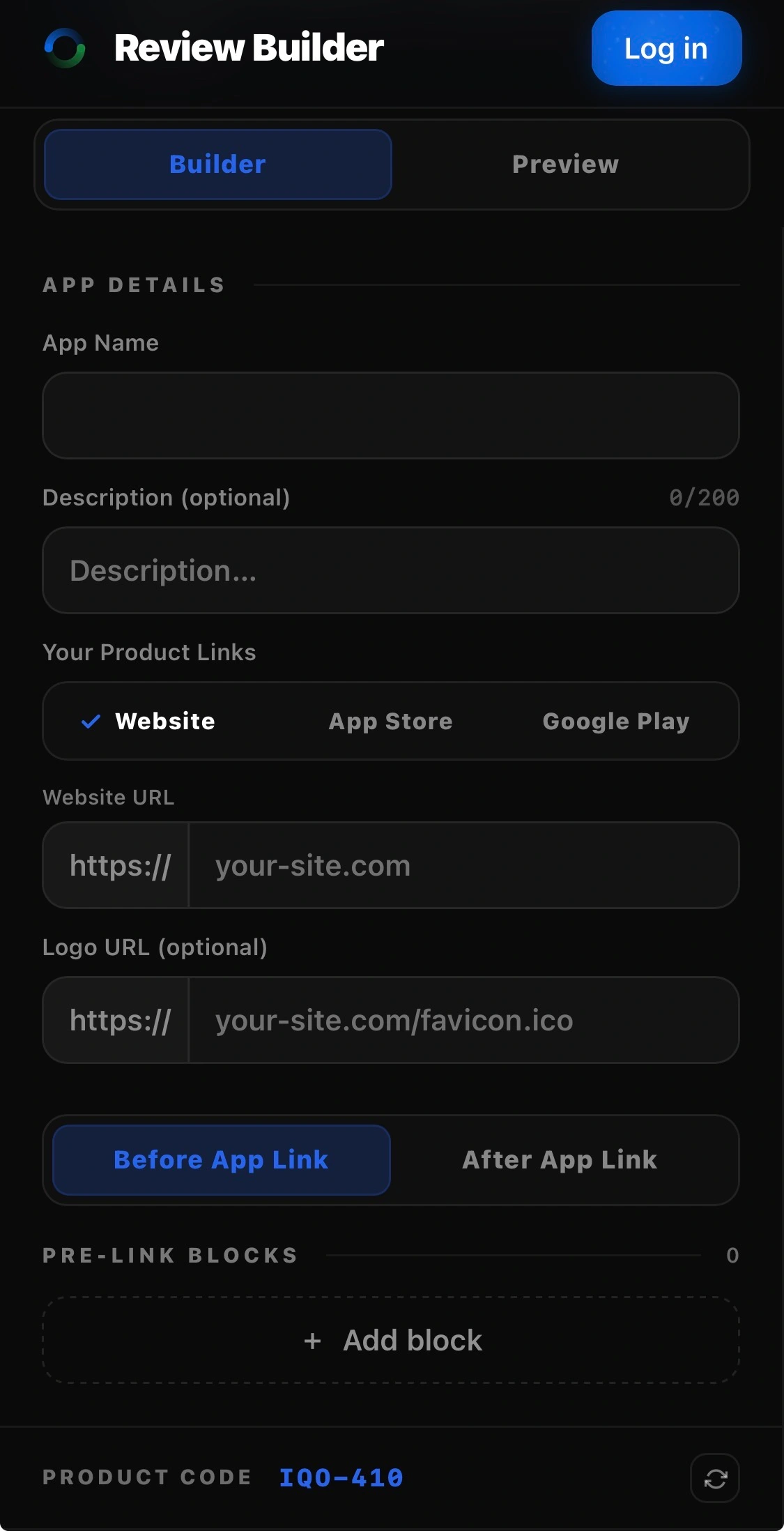
On wider screens, the builder has draggable question blocks that allows for intuitive survey creates, as well as including a palette, save tool, and utility tools. On smaller screens, the mobile builder has fewer fields and uses a tabbed layout.
How the form is assembled
The product links are the center of the survey. Anything above it can prepare reviewers before they open the product; anything below it should ask what they noticed after using it. On the desktop builder, the product link card is the only card on the form when the page loads. On mobile, the product link card is edited in the app details section on the Builder tab.
Survey structure
App details
Name the product, add one or more product links, and optionally provide a product description or logo URL.
Before link
Place setup instructions or questions reviewers should answer before opening the product.
Product links section
The product link block allows you to provide an website link, App Store link, and / or Google Play link for your product
After link
Ask the main feedback questions after the reviewer has used the product.
Make an Audit Question
Validating that you have authentic responses hinges entirely on creating a proper audit question. Without it, Feedbacked cannot properly ensure that every user tried your app. To understand how to make a proper audit, read the audit questions guide.
Publish
Publish your survey, choose how many responses you'd like, what currency to pay in, and how much per response. Minimum is $1.99 per response, and you can optionally add more to pass directly to reviewers.
Choose the right block
Use a mix of lightweight prompts and focused questions. Shorter surveys are easier to finish, but every question should earn its place by telling you something useful about the product.
Use headings, instructions, context, or promotions. Text blocks guide the reviewer but do not count as questions.
Ask reviewers to choose one answer. If audited, pick the single correct option.
Let reviewers choose every applicable option. If audited, select every correct answer.
Collect open-ended feedback with a minimum character count. Free-response audits use criteria instead of one exact answer.
Ask for a numeric rating between two bounds. Audit sliders need a compact range so the right value is reasonable.
Ask reviewers to order bars from most to least important. If audited, the full order is the answer.
Add audit questions
At least one question must be marked as an audit before the survey can publish. A good audit asks about a product detail or action a genuine reviewer would naturally know after completing the review.
Do not use audits as trick questions. Make them clear enough for a real reviewer to pass, and specific enough that someone who never used the product cannot guess easily.
The shield turns feedback into verified feedback
Select the Audit button on a real question, then provide the answer or criteria Feedbacked should use for validation. Reviewers see the question normally; they are not told it is an audit.
Exact choice
Multiple choice
Select the one option that a genuine reviewer should choose.
Correct set
Select all
Choose every option that must be included for the answer to pass.
Expected value
Slider
Pick the correct number inside the slider bounds.
Full order
Rank
Arrange every option exactly once in the correct sequence.
Response criteria
Free response
Describe the action to verify, the knowledge to verify, and optional validation notes.
For deeper guidance, read the audit questions guide.
Builder tools
The desktop builder has a palette, a canvas, a live preview, and a right-edge utility rail. The mobile builder uses tabs for editing and previewing, but creates the same survey structure.
- Drag blocks from the palette or add them from the mobile builder.
- Move the product link divider to decide what appears before or after product use.
- Use the live preview to check the reviewer experience while building.
- Filter the canvas to show all questions, only audits, or only regular questions.
- Use style colors to make sections easier to scan while drafting.
- Save drafts into slots or export/import a .fbuild file.
Validation before publish
Publishing runs the same checks available from the builder's validation tool. These checks protect reviewers from broken tasks and protect clients from surveys that cannot be verified.
App name is required and can be up to 27 characters.
At least one website, App Store, or Google Play link must be enabled and valid.
At least one block must appear after the product link.
At least one non-text question must be marked as an audit.
All questions and text blocks need content before publishing.
Forms can include up to 15 questions, 20 text blocks, and 3 free-response questions.
Multiple choice, select-all, and rank questions can have up to 20 options, or 6 options when audited.
Free-response audit fields are capped at 150 characters each.
Free-response minimum character counts must be between 1 and 300.
Promotion links must be valid URLs.
Publish and buy verified responses
After validation passes, Feedbacked asks how many verified responses you want to buy. You can also add an optional response bonus that increases reviewer pay for that survey. When payment succeeds, the survey receives a product code and can be shown to reviewers.
Survey requirements
- Your product must be legal, functional, and accessible to reviewers.
- Questions must be answerable without requiring reviewers to spend money or create paid accounts.
- Questions should be appropriate, clear, and directly related to the product experience.
- If a product is inaccessible, broken, requires payment, or creates risk for reviewers or the platform, Feedbacked may pause, modify, or end the campaign.
What clients receive
Clients receive survey responses, ratings, rankings, and written feedback without reviewer names, email addresses, bank details, or other personally identifying information.